

Color by number in the Colovia app means choosing a numbered color and tapping the matching regions on your screen. This guide takes you from an empty digital picture to your first finished artwork: choosing a manageable scene, reading the palette, finding tiny gaps, and trying a shared canvas. You can follow the basic steps on a phone or in the browser.
If you arrived looking for color by number online, start from the Colovia app page, which links to the available platforms and web app. The screenshots below show the live English web interface. Mobile layouts and the exact wording of controls can differ between releases, but the relationship between a region number and its color stays the same.
1. Choose a picture you can comfortably explore
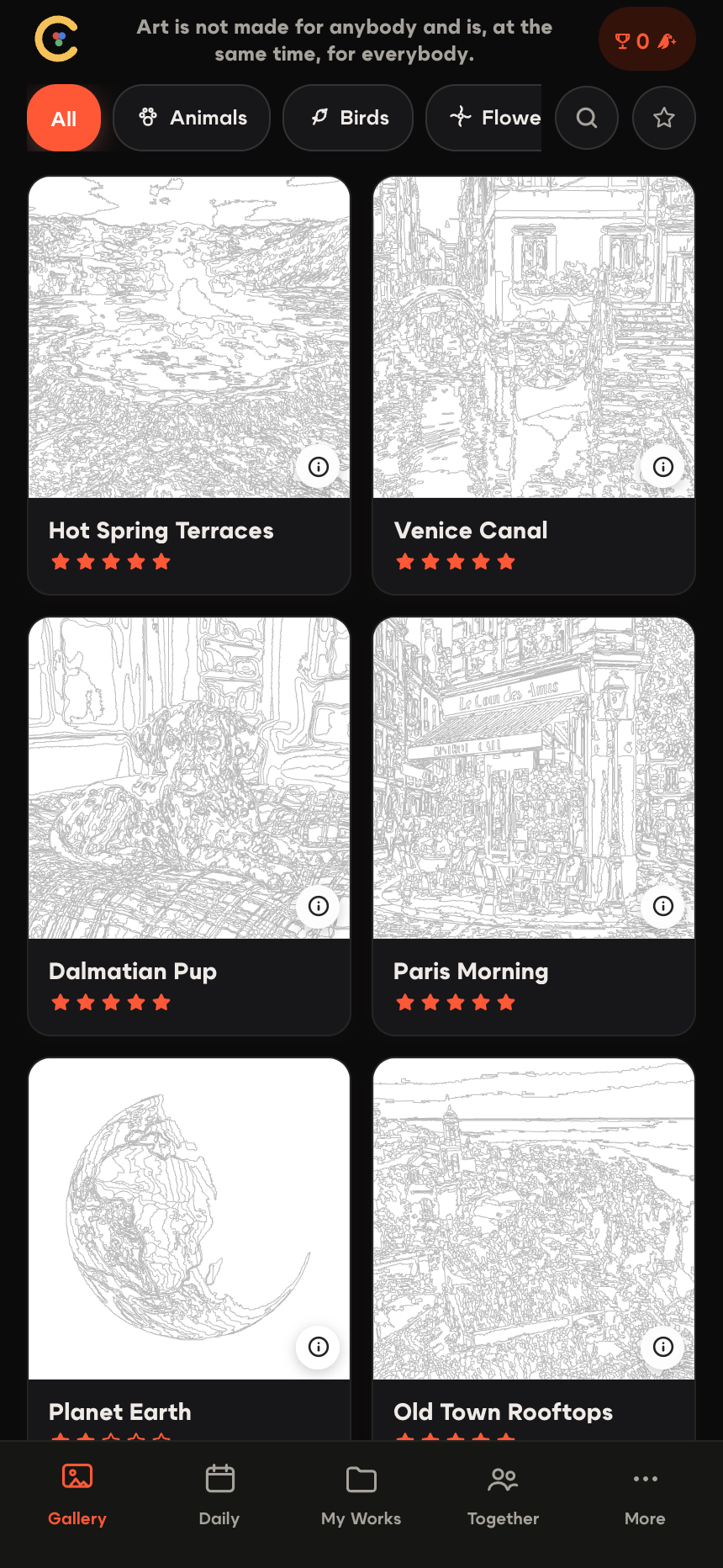
Open Gallery and choose a subject you enjoy. Animals, flowers and landscapes all work; what matters for your first attempt is whether you can distinguish the main shapes. A picture with a clear subject and some large regions gives you room to learn. A dense pattern of tiny outlines asks for more zooming and searching, even when the finished image looks simple.
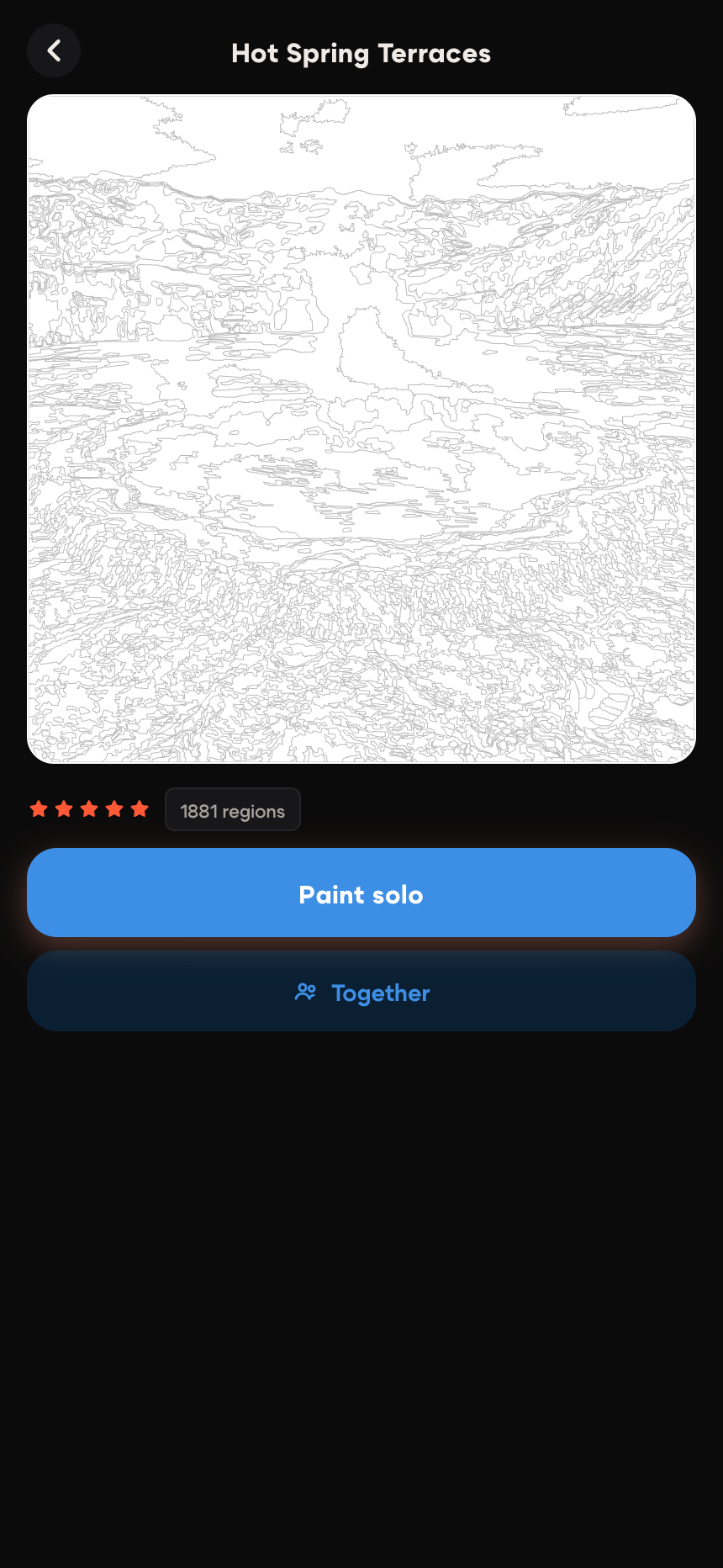
Use the difficulty stars to compare pictures, then open the information button for a closer look. Where the details show a region count, treat it as another clue about the amount of tapping involved. It is not a reliable promise of how many minutes or evenings the picture will take. Screen size, region shape and your preferred pace matter too.
Start with an ordinary solo picture so you can practise without following another player's progress. You can explore the Colovia picture gallery before entering the app. The daily picture is another starting point, but it is optional. For a first session, aim to understand one color and complete a few regions; finishing the whole picture can wait.
2. Match the palette number to the region
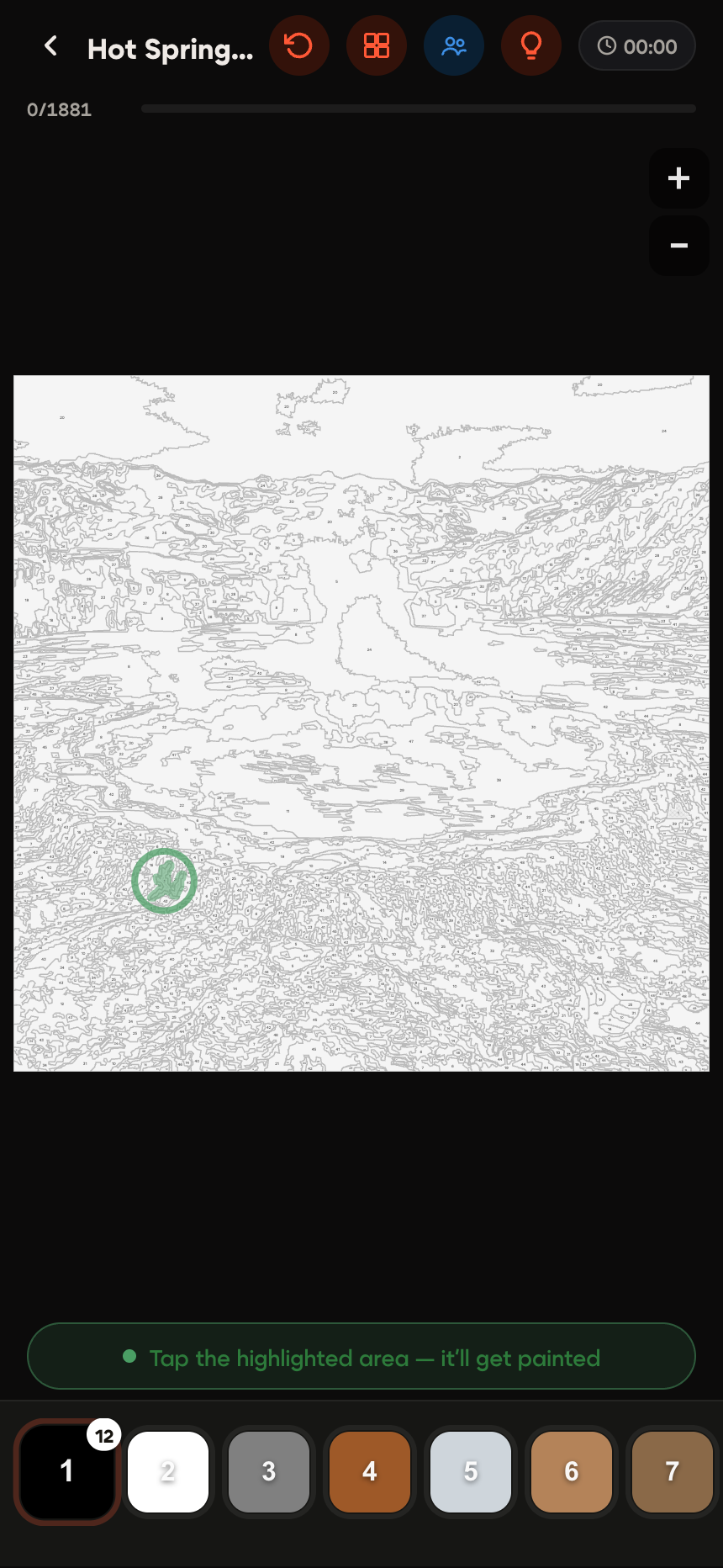
The palette sits along the bottom of the coloring screen. Each button combines a color with a number. Select a button, find a region carrying the same number, and tap inside its outline. For example, color 3 belongs in regions marked 3. In ordinary solo coloring, a mismatched number does not fill the region with the wrong color.
You do not need to brush over the whole shape or trace its border. One accurate tap fills the region. If a narrow shape is hard to reach, zoom in first. On a touch screen, spread two fingers to enlarge the picture and move the canvas to bring the area into view. Zoom out occasionally to find your place in the complete scene.
Try finishing the obvious regions of one color before searching for its smaller gaps. Alternatively, work on one part of the picture and change colors as needed. Both approaches are useful; choose whichever makes the canvas easier to follow. When a color is complete, the app can select the next unfinished color, so check the highlighted palette button before your next tap.
Progress is counted by filled regions. A picture can look almost finished while several tiny pieces remain. Large shapes cover more visible space, but a small highlight still needs its own matching color. Use the progress indicator to understand what remains instead of judging completion only by appearance.
3. Find small gaps with zoom and hints
If you cannot find the current number, enlarge the picture and look along the edges of objects. Narrow strips between two completed regions are easy to overlook. Check the corners too. Before searching the whole canvas, confirm that the palette has not moved to a different color after your previous fill.
The lightbulb control is the hint tool. It points out an unpainted region so you can find and fill it. After using a hint, look at the surrounding area before requesting another one: nearby gaps may use the same color. Zooming and reading the selected number remain useful even when you have hints available.
Hints can use in-app points, and the conditions may differ between solo and shared play. Check the displayed cost and any active offer before confirming. You do not need to buy hints to finish an ordinary picture. If the selected regions are difficult to distinguish, explore the available highlighting options in Settings and choose a style that is easier for you to see.
Take a break when searching becomes tiring. Colovia saves progress automatically, and My Works is the place to return to an unfinished picture. If you plan to continue on another device, check your sign-in and allow progress to sync with an internet connection. A guest session and a different account should not be assumed to contain the same work.
4. Explore animation and a shared canvas
Finishing a picture lets you see the whole result without searching for another number. Where available, a timelapse replays the sequence of your fills as a short video. This is a record of how you colored. The separate animation feature, sometimes described as bringing the picture to life, shows movement within the finished scene.
Look for the animation control on a supported completed picture and read its conditions before confirming. Availability depends on the artwork and current client, and an animation may require points. Finishing any picture does not automatically mean that an animated version exists. Viewing the completed artwork is a satisfying stopping point on its own.
To try coloring with a friend, choose a catalogue picture and use its shared-room option. Create a room and send the invitation through the app's available sharing controls. Both players must enter that same room: independently opening the same picture creates separate experiences. See the guide to coloring together for the shared-play starting point.
With an internet connection, participants see each other's fills on the shared canvas. You can agree to work on different objects, or simply fill matching regions wherever you find them. Start with a catalogue picture for this first attempt. The availability of collaboration for a picture made from your own photo is a separate feature and should be checked in the current app.
5. Fix the common first-picture mistakes
Tapping repeatedly without checking the number. Confirm the selected palette button, enlarge the target and tap near its center. A thin neighboring strip may belong to another color. Slowing down for one accurate tap is more useful than repeatedly hitting the same boundary.
Treating every pale area as an unfinished gap. Some palette colors are almost white. Use the numbers and progress indicator to tell whether work remains. A completed pale region does not have to become bright or strongly colored.
Choosing a very detailed scene before learning the controls. Move to a simpler picture if constant zooming makes the first session frustrating. You can return to the more intricate scene later. Difficulty stars and a close look at the preview help you make that choice without imposing a time target.
Confusing automatic saving with account transfer. Before moving to another phone, check which account you are using and let the app sync. If the connection fails, restore it and confirm that the work appears in My Works. Do not rely on a different sign-in to recover a guest session automatically.
Expecting every mode to offer the same actions. Solo pictures, shared rooms and photo-created artwork can have different controls. Read the choices shown for the current picture. The complete Colovia guide explains the wider feature set when you are ready. For now, one picture, one selected number and a few matching taps are enough to begin.